Monday, December 25, 2023

Ubuntu Linux 20.04 LTSにOpenJDK 17をインストールする


これは、なにをしたくて書いたもの?

OpenJDK 17が、2021年9月14日にリリースされました。

Oracle Releases Java 17

とはいえ、Ubuntu Linuxで使えるのはしばらく先だろうと思っていたのでそのままにしていたのですが。

気づくと使えるようになっていたので、インストールしておきます。

OpenJDK 17パッケージ

Ubuntu Linux 20.04 LTSでは9月末に使えるようになっていたみたいです。

openjdk-17 package : Ubuntu

こちらを今回インストールします。

環境

今回の環境はこちら。Ubuntu Linux 20.04 LTSです。

$ lsb_release -a
No LSB modules are available.
Distributor ID: Ubuntu
Description:    Ubuntu 20.04.3 LTS
Release:        20.04
Codename:       focal


$ uname -srvmpio
Linux 5.4.0-90-generic #101-Ubuntu SMP Fri Oct 15 20:00:55 UTC 2021 x86_64 x86_64 x86_64 GNU/Linux

OpenJDK 17をインストールする

まずは、openjdk-17-jdkの情報を見てみます。

$ apt show openjdk-17-jdk
Package: openjdk-17-jdk
Version: 17+35-1~20.04
Priority: optional
Section: universe/java
Source: openjdk-17
Origin: Ubuntu
Maintainer: OpenJDK Team <openjdk-17@packages.debian.org>
Bugs: https://bugs.launchpad.net/ubuntu/+filebug
Installed-Size: 55.3 kB
Provides: java-compiler, java-sdk, java10-sdk, java11-sdk, java12-sdk, java13-sdk, java14-sdk, java15-sdk, java16-sdk, java17-sdk, java2-sdk, java5-sdk, java6-sdk, java7-sdk, java8-sdk, java9-sdk
Depends: openjdk-17-jre (= 17+35-1~20.04), openjdk-17-jdk-headless (= 17+35-1~20.04), libc6 (>= 2.2.5)
Recommends: libxt-dev
Suggests: openjdk-17-demo, openjdk-17-source, visualvm
Homepage: https://openjdk.java.net/
Download-Size: 10.5 kB
APT-Sources: http://jp.archive.ubuntu.com/ubuntu focal-updates/universe amd64 Packages
Description: OpenJDK Development Kit (JDK)
 OpenJDK is a development environment for building applications,
 applets, and components using the Java programming language.

openjdk-17に関するパッケージは、これだけあるみたいです。

$ apt search openjdk-17
ソート中... 完了
全文検索... 完了
msopenjdk-17/focal 17.0.1+12-LTS-1 amd64
  OpenJDK Development Kit 17 (JDK) with Hotspot by Microsoft

openjdk-17-dbg/focal-updates 17+35-1~20.04 amd64
  Java runtime based on OpenJDK (debugging symbols)

openjdk-17-demo/focal-updates 17+35-1~20.04 amd64
  Java runtime based on OpenJDK (demos and examples)

openjdk-17-doc/focal-updates,focal-updates 17+35-1~20.04 all
  OpenJDK Development Kit (JDK) documentation

openjdk-17-jdk/focal-updates 17+35-1~20.04 amd64
  OpenJDK Development Kit (JDK)

openjdk-17-jdk-headless/focal-updates 17+35-1~20.04 amd64
  OpenJDK Development Kit (JDK) (headless)

openjdk-17-jre/focal-updates 17+35-1~20.04 amd64
  OpenJDK Java runtime, using Hotspot JIT

openjdk-17-jre-headless/focal-updates 17+35-1~20.04 amd64
  OpenJDK Java runtime, using Hotspot JIT (headless)

openjdk-17-jre-zero/focal-updates 17+35-1~20.04 amd64
  Alternative JVM for OpenJDK, using Zero

openjdk-17-source/focal-updates,focal-updates 17+35-1~20.04 all
  OpenJDK Development Kit (JDK) source files

現時点で自分の環境にインストールしているOpenJDK。

$ update-alternatives --list java
/usr/lib/jvm/java-11-openjdk-amd64/bin/java
/usr/lib/jvm/java-8-openjdk-amd64/jre/bin/java

ここに、OpenJDK 17を追加。

$ sudo apt install openjdk-17-jdk

OpenJDK 17が増えました。

$ update-alternatives --list java
/usr/lib/jvm/java-11-openjdk-amd64/bin/java
/usr/lib/jvm/java-17-openjdk-amd64/bin/java
/usr/lib/jvm/java-8-openjdk-amd64/jre/bin/java

すでにデフォルトのJavaとして設定されているみたいです。

$ sudo update-alternatives --config java
alternative java (/usr/bin/java を提供) には 3 個の選択肢があります。

  選択肢    パス                                          優先度  状態
------------------------------------------------------------
* 0            /usr/lib/jvm/java-17-openjdk-amd64/bin/java      1711      自動モード
  1            /usr/lib/jvm/java-11-openjdk-amd64/bin/java      1111      手動モード
  2            /usr/lib/jvm/java-17-openjdk-amd64/bin/java      1711      手動モード
  3            /usr/lib/jvm/java-8-openjdk-amd64/jre/bin/java   1081      手動モード

現在の選択 [*] を保持するには <Enter>、さもなければ選択肢の番号のキーを押してください:

確認。

$ java --version
openjdk 17 2021-09-14
OpenJDK Runtime Environment (build 17+35-Ubuntu-120.04)
OpenJDK 64-Bit Server VM (build 17+35-Ubuntu-120.04, mixed mode, sharing)

ちなみに、今回はjavaコマンドのみを対象にしていますが、その他javacなどのコマンドもひとつひとつ
update-alternatives --configで切り替えていく必要があります。

まあ、しばらくはOpenJDK 11かな…。

$ sudo update-alternatives --config java
alternative java (/usr/bin/java を提供) には 3 個の選択肢があります。

  選択肢    パス                                          優先度  状態
------------------------------------------------------------
* 0            /usr/lib/jvm/java-17-openjdk-amd64/bin/java      1711      自動モード
  1            /usr/lib/jvm/java-11-openjdk-amd64/bin/java      1111      手動モード
  2            /usr/lib/jvm/java-17-openjdk-amd64/bin/java      1711      手動モード
  3            /usr/lib/jvm/java-8-openjdk-amd64/jre/bin/java   1081      手動モード

現在の選択 [*] を保持するには <Enter>、さもなければ選択肢の番号のキーを押してください: 1
update-alternatives: /usr/bin/java (java) を提供するためにマニュアルモードで /usr/lib/jvm/java-11-openjdk-amd64/bin/java を使います

Monday, December 16, 2019

Java Naming Conventions

Below are some naming conventions of java programming language. They must be followed while developing software in java for good maintenance and readability of code. Java uses CamelCase as a practice for writing names of methods, variables, classes, packages and constants.

Camel case in Java Programming : It consists of compound words or phrases such that each word or abbreviation begins with a capital letter or first word with a lowercase letter, rest all with capital.
  1. Classes and Interfaces :
    • Class names should be nouns, in mixed case with the first letter of each internal word capitalised. Interfaces name should also be capitalised just like class names.
    • Use whole words and must avoid acronyms and abbreviations.
    Examples:
    interface  Bicycle
    class MountainBike implements Bicyle
    
    interface Sport
    class Football implements Sport
    
  2. Methods :
    • Methods should be verbs, in mixed case with the first letter lowercase and with the first letter of each internal word capitalised.
    Examples:
    void changeGear(int newValue);
    void speedUp(int increment);
    void applyBrakes(int decrement);
    
  3. Variables : Variable names should be short yet meaningful.
    • Should not start with underscore(‘_’) or dollar sign ‘$’ characters.
    • Should be mnemonic i.e, designed to indicate to the casual observer the intent of its use.
    • One-character variable names should be avoided except for temporary variables.
    • Common names for temporary variables are i, j, k, m, and n for integers; c, d, and e for characters.
    Examples:
        // variables for MountainBike class
        int speed = 0;
        int gear = 1;
    
  4. Constant variables:
    • Should be all uppercase with words separated by underscores (“_”).
    • There are various constants used in predefined classes like Float, Long, String etc.
    Examples:
    static final int MIN_WIDTH = 4;
    
    // Some  Constant variables used in predefined Float class
    public static final float POSITIVE_INFINITY = 1.0f / 0.0f;
    public static final float NEGATIVE_INFINITY = -1.0f / 0.0f;
    public static final float NaN = 0.0f / 0.0f;
    
  5. Packages:
    • The prefix of a unique package name is always written in all-lowercase ASCII letters and should be one of the top-level domain names, like com, edu, gov, mil, net, org.
    • Subsequent components of the package name vary according to an organisation’s own internal naming conventions.
    Examples:
    com.sun.eng
    com.apple.quicktime.v2
    
    // java.lang packet in JDK
    java.lang
    
This article is contributed by Gaurav Miglani. If you like GeeksforGeeks and would like to contribute, you can also write an article using contribute.geeksforgeeks.org or mail your article to contribute@geeksforgeeks.org. See your article appearing on the GeeksforGeeks main page and help other Geeks.
Please write comments if you find anything incorrect, or you want to share more information about the topic discussed above.

Thursday, October 3, 2019

What are the differences between EAR, JAR and WAR files?

When Java applications are deployed, all of the files that constitute the Java app are compressed and packaged into a single file. While compressed files are typically given a .zip extension, the Java community instead uses the .ear extension for Java EE-based enterprise applications, .war for web applications, and .jar for stand-alone Java applications and linkable libraries.
But, under the covers, EAR, JAR and WAR files are all simply zip files that contain the various images, XML files, property files and pieces of Java code that make up a Java application. If the .ear, .war or .jar extension of any of these files is changed to .zip, it can be opened with any standard decompression tool, including 7-Zip or WinRAR. Let's explore the differences between JAR, WAR and EAR files.

Why use EAR, JAR and WAR files

Even the simplest Java applications can be composed of 10 or 20 independent Java files. Complex enterprise applications can contain thousands of files. You can make software development easier with many files with specific responsibilities, but it complicates application deployment.
But you can simplify this process when you move applications between environments, link to them at runtime, move them across networks and store them in Maven repositories when you package multipart applications as a single, compressed file. Despite the differences between JAR, WAR and EAR files, they can all help simplify your Java application deployment time.

How to create EAR, JAR and WAR files

Since WAR, JAR and EAR files all use a standard compression algorithm, they can be created with any standard compression tool. However, the JDK comes with a special utility named jar.exe, which will package and compress web, enterprise and Java applications into their corresponding type.
There are also a number of popular DevOps tools that that will automatically package applications as EAR, JAR and WAR files as part of a CI workflow. For example, the conclusion of a Jenkins pipeline is often a call to a build tool such as Ant, Maven or Gradle to package the tested application into the appropriate archive.
Create a WAR, JAR or EAR
DevOps tools like Maven can create WAR, JAR and EAR files.

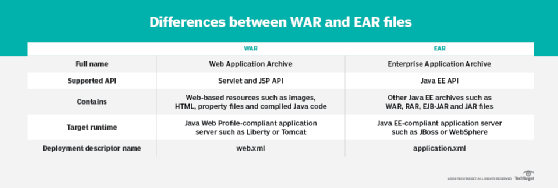
Differences between EAR and WAR files

Differences between WAR and EAR files

What's the difference between EAR, JAR and WAR files?

The biggest difference between JAR, WAR and EAR files is the fact that they are targeted toward different environments. An EAR file requires a fully Java Platform, Enterprise Edition (Java EE)- or Jakarta Enterprise Edition (EE)-compliant application server, such as WebSphere or JBoss, to run. A WAR file only requires a Java EE Web Profile-compliant application server to run, and a JAR file only requires a Java installation.
There are also internal restrictions and requirements that apply to EAR, WAR and JAR files. EAR files themselves must have an application.xml file contained within a folder named META-INF. A WAR file requires a web.xml file contained within a WEB-INF folder. Java files have neither of these requirements.

JAR vs. EJB-JAR

The Java EE specification also defines a special type of JAR file that contains only Enterprise JavaBeans (EJB). This file has a .jar extension but contains a special deployment descriptor and is intended to isolate EJB components from other parts of the enterprise application. The Java EE spec also defines a resource adapter archive, which contains code that bridges an enterprise application to external services, like message queues and databases. These files have a .rar extension.

Microservices and JAR files

The current trend in the software development industry is toward microservices development and away from monolithic applications. As such, there has been a move away from the development and deployment of enterprise applications deployed as EAR files and a move toward the creation of smaller components that are deployed as JAR files.

Monday, September 30, 2019

Variable Arguments (Varargs) in Java

In JDK 5, Java has included a feature that simplifies the creation of methods that need to take a variable number of arguments. This feature is called varargs and it is short-form for variable-length arguments. A method that takes a variable number of arguments is a varargs method.
Prior to JDK 5, variable-length arguments could be handled two ways. One using overloaded method(one for each) and another put the arguments into an array, and then pass this array to the method. Both of them are potentially error-prone and require more code. The varargs feature offers a simpler, better option.
Syntax of varargs :
A variable-length argument is specified by three periods(…). For Example,
public static void fun(int ... a) 
{
   // method body
} 
This syntax tells the compiler that fun( ) can be called with zero or more arguments. As a result, here a is implicitly declared as an array of type int[]. Below is a code snippet for illustrating the above concept :


filter_none
edit
play_arrow
brightness_4
// Java program to demonstrate varargs
class Test1
{
    // A method that takes variable number of intger
    // arguments.
    static void fun(int ...a)
    {
        System.out.println("Number of arguments: " + a.length);
  
        // using for each loop to display contents of a
        for (int i: a)
            System.out.print(i + " ");
        System.out.println();
    }
  
    // Driver code
    public static void main(String args[])
    {
        // Calling the varargs method with different number
        // of parameters
        fun(100);         // one parameter
        fun(1, 2, 3, 4);  // four parameters
        fun();            // no parameter
    }
}
Output:
Number of arguments: 1
100 
Number of arguments: 4
1 2 3 4 
Number of arguments: 0
    Explanation of above program :
    • The … syntax tells the compiler that varargs has been used and these arguments should be stored in the array referred to by a.
    • The variable a is operated on as an array. In this case, we have defined the data type of a as int. So it can take only integer values. The number of arguments can be found out using a.length, the way we find the length of an array in Java.
    Note: A method can have variable length parameters with other parameters too, but one should ensure that there exists only one varargs parameter that should be written last in the parameter list of the method declaration.
     int nums(int a, float b, double … c)
    In this case, the first two arguments are matched with the first two parameters and the remaining arguments belong to c.
    filter_none
    edit
    play_arrow
    brightness_4
    // Java program to demonstrate varargs with normal
    // arguments
    class Test2
    {
        // Takes string as a argument followed by varargs
        static void fun2(String str, int ...a)
        {
            System.out.println("String: " + str);
            System.out.println("Number of arguments is: "+ a.length);
      
            // using for each loop to display contents of a
            for (int i: a)
                System.out.print(i + " ");
      
            System.out.println();
        }
      
        public static void main(String args[])
        {
            // Calling fun2() with different parameter
            fun2("GeeksforGeeks", 100, 200);
            fun2("CSPortal", 1, 2, 3, 4, 5);
            fun2("forGeeks");
        }
    }
    String: GeeksforGeeks
    Number of arguments is: 2
    100 200 
    String: CSportal
    Number of arguments is: 5
    1 2 3 4 5 
    String: forGeeks
    Number of arguments is: 0
    Important points:
    • Vararg Methods can also be overloaded but overloading may lead to ambiguity.
    • Prior to JDK 5, variable length arguments could be handled into two ways : One was using overloading, other was using array argument.
    • There can be only one variable argument in a method.
    • Variable argument (varargs) must be the last argument.
    Erroneous varargs Examples
    • Specifying two varargs in a single method:
      void method(String... gfg, int... q)
      {
          // Compile time error as there are two
          // varargs
      }
      
    • Specifying varargs as the first parameter of method instead of last one:
      void method(int... gfg, String q)
      {
          // Compile time error as vararg appear
          // before normal argument
      }