This section explains how to use the
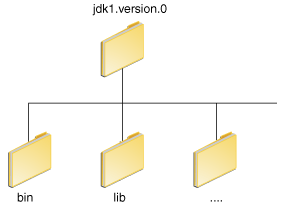
After installing the software, the JDK directory will have the structure shown below.
The
Set the
The
The following is an example of a
It is useful to set the
Windows XP
Note: You may see a
Variables enclosed in percentage signs (
To find out if the path is properly set, execute:
This will print the version of the
To set the path permanently, set the path in your startup file.
For C shell (
For
For
For
Then load the startup file and verify that the path is set by repeating the
For C shell (
For
The preferred way to specify the class path is by using the
The default value of the class path is ".", meaning that only the current directory is searched. Specifying either the CLASSPATH variable or the
To check whether
On Solaris or Linux, execute the following:
If
To modify the
Class path wildcards allow you to include an entire directory of
PATH and CLASSPATH
environment variables on Microsoft Windows, Solaris, and Linux. Consult
the installation instructions included with your installation of the
Java Development Kit (JDK) software bundle for current information.After installing the software, the JDK directory will have the structure shown below.
bin directory contains both the compiler and the launcher.Update the PATH Environment Variable (Microsoft Windows)
You can run Java applications just fine without setting thePATH environment variable. Or, you can optionally set it as a convenience.Set the
PATH environment variable if you want to be able to conveniently run the executables (javac.exe, java.exe, javadoc.exe, and so on) from any directory without having to type the full path of the command. If you do not set the PATH variable, you need to specify the full path to the executable every time you run it, such as:C:\Java\jdk1.7.0\bin\javac MyClass.java
PATH environment variable is a series of directories separated by semicolons (;). Microsoft Windows looks for programs in the PATH directories in order, from left to right. You should have only one bin
directory for the JDK in the path at a time (those following the first
are ignored), so if one is already present, you can update that
particular entry.The following is an example of a
PATH environment variable:C:\Java\jdk1.7.0\bin;C:\Windows\System32\;C:\Windows\;C:\Windows\System32\Wbem
PATH environment variable permanently so it will persist after rebooting. To make a permanent change to the PATH variable, use the System icon in the Control Panel. The precise procedure varies depending on the version of Windows:Windows XP
- Select Start, select Control Panel. double click System, and select the Advanced tab.
- Click Environment Variables. In the section System Variables, find the
PATHenvironment variable and select it. Click Edit. If thePATHenvironment variable does not exist, clickNew. - In the Edit System Variable (or New System Variable) window, specify the value of the
PATHenvironment variable. Click OK. Close all remaining windows by clicking OK.
- From the desktop, right click the My Computer icon.
- Choose Properties from the context menu.
- Click the Advanced tab (Advanced system settings link in Vista).
- Click Environment Variables. In the section System Variables, find the
PATHenvironment variable and select it. Click Edit. If thePATHenvironment variable does not exist, clickNew. - In the Edit System Variable (or New System Variable) window, specify the value of the
PATHenvironment variable. Click OK. Close all remaining windows by clicking OK.
- From the desktop, right click the Computer icon.
- Choose Properties from the context menu.
- Click the Advanced system settings link.
- Click Environment Variables. In the section System Variables, find the
PATHenvironment variable and select it. Click Edit. If thePATHenvironment variable does not exist, clickNew. - In the Edit System Variable (or New System Variable) window, specify the value of the
PATHenvironment variable. Click OK. Close all remaining windows by clicking OK.
Note: You may see a
PATH environment variable similar to the following when editing it from the Control Panel:
%JAVA_HOME%\bin;%SystemRoot%\system32;%SystemRoot%;%SystemRoot%\System32\Wbem
%) are existing environment variables. If one of these variables is listed in the Environment Variables window from the Control Panel (such as JAVA_HOME),
then you can edit its value. If it does not appear, then it is a
special environment variable that the operating system has defined. For
example, SystemRoot is the location of the Microsoft
Windows system folder. To obtain the value of a environment variable,
enter the following at a command prompt. (This example obtains the value
of the SystemRoot environment variable):
echo %SystemRoot%
Update the PATH Variable (Solaris and Linux)
You can run the JDK just fine without setting thePATH
variable, or you can optionally set it as a convenience. However, you
should set the path variable if you want to be able to run the
executables (javac, java, javadoc, and so on) from any directory without having to type the full path of the command. If you do not set the PATH variable, you need to specify the full path to the executable every time you run it, such as:% /usr/local/jdk1.7.0/bin/javac MyClass.java
% java -version
java tool, if it can find it. If the version is old or you get the error java: Command not found, then the path is not properly set.To set the path permanently, set the path in your startup file.
For C shell (
csh), edit the startup file (~/.cshrc):set path=(/usr/local/jdk1.7.0/bin $path)
bash, edit the startup file (~/.bashrc):PATH=/usr/local/jdk1.7.0/bin:$PATH export PATH
ksh, the startup file is named by the environment variable, ENV. To set the path:PATH=/usr/local/jdk1.7.0/bin:$PATH export PATH
sh, edit the profile file (~/.profile):PATH=/usr/local/jdk1.7.0/bin:$PATH export PATH
java command:For C shell (
csh):% source ~/.cshrc % java -version
ksh, bash, or sh:% . /.profile % java -version
Checking the CLASSPATH variable (All platforms)
TheCLASSPATH variable is one way to tell applications,
including the JDK tools, where to look for user classes. (Classes that
are part of the JRE, JDK platform, and extensions should be defined
through other means, such as the bootstrap class path or the extensions
directory.)The preferred way to specify the class path is by using the
-cp command line switch. This allows the CLASSPATH to be set individually for each application without affecting other applications. Setting the CLASSPATH can be tricky and should be performed with care.The default value of the class path is ".", meaning that only the current directory is searched. Specifying either the CLASSPATH variable or the
-cp command line switch overrides this value.To check whether
CLASSPATH is set on Microsoft Windows NT/2000/XP, execute the following:C:> echo %CLASSPATH%
% echo $CLASSPATH
CLASSPATH is not set you will get a CLASSPATH: Undefined variable error (Solaris or Linux) or simply %CLASSPATH% (Microsoft Windows NT/2000/XP).To modify the
CLASSPATH, use the same procedure you used for the PATH variable.Class path wildcards allow you to include an entire directory of
.jar
files in the class path without explicitly naming them individually.
For more information, including an explanation of class path wildcards,
and a detailed description on how to clean up the CLASSPATH environment variable, see the
Setting the Class Path technical note.