Friday, August 4, 2017

Princeton Java Standard Libraries

Below is a table of the input and output libraries that we use throughout the textbook and beyond.

§ PROGRAM DESCRIPTION / JAVADOC
1.5 StdIn.java read numbers and text from standard input
1.5 StdOut.java write numbers and text to standard output
1.5 StdDraw.java draw geometric shapes in a window
1.5 StdAudio.java create, play, and manipulate sound
2.2 StdRandom.java generate random numbers
2.2 StdStats.java compute statistics
2.2 StdArrayIO.java read and write 1D and 2D arrays
3.1 In.java read numbers and text from files and URLs
3.1 Out.java write numbers and text to files
3.1 Draw.java draw geometric shapes
3.1 Picture.java process digital images
3.2 Stopwatch.java measure running time
BinaryStdIn.java read bits from standard input
BinaryStdOut.java write bits to standard output
BinaryIn.java read bits from files and URLs
BinaryOut.java write bits to files


Using the standard libraries.

The file stdlib.jar bundles together all of our standard libraries into one file. There are a number of ways to access the libraries:
  • Current directory. The easiest (but not the sanest) way to use the standard libraries to download stdlib.jar and unjar it in your current working directory.
    % jar xf stdlib.jar
    
    Alternatively, you can download the individual .java files you need (such as StdIn.java) and put them in the same directory as the program you are writing. Then, compile and execute as usual.
    % javac MyProgram.java
    % java  MyProgram
    
    This approach has the drawback that you need a copy of each .java file you need in each directory where you need it.
  • Classpath. Put stdlib.jar in the same directory as the program you are writing (but do not unjar it). Then, compile and execute as follows:
    OS X / Linux
    ------------
    % javac -cp .:stdlib.jar MyProgram.java
    % java  -cp .:stdlib.jar MyProgram
    
    Windows
    ------------
    % javac -cp .;stdlib.jar MyProgram.java
    % java  -cp .;stdlib.jar MyProgram
    
    The -cp flag sets the classpath. The . tells Java to look in the current directory for .java and .class files (such as MyProgram.java and MyProgram.class). The stdlib.jar tells Java to also look in the .jar file. On OS X, the : separates directories in the classpath; on Windows the ; separates directories.
  • Configure your IDE. You can configure your IDE to automatically include stdlib.jar in the classpath. In DrJava, it is Preferences -> Extra Classpath -> Add.

Standard input and standard output.

StdIn.java and StdOut.java are libraries for reading in numbers and text from standard input and printing out numbers and text to standard output. Our versions have a simpler interface than the corresponding Java ones (and provide a few tecnical improvements). Average.java reads in a sequence of real numbers from standard input and prints their average on standard output.
% java Average
10.0 5.0 6.0 3.0 7.0 32.0
3.14 6.67 17.71
<Ctrl-d>
Average is 10.05777777777778
In.java and Out.java are object-oriented versions that support multiple input and output streams, including reading from a file or URL and writing to a file. Wget.java reads in data from the URL specified on the command line and save it in a file with the same name.
% java Wget http://www.cs.princeton.edu/IntroProgramming/datafiles/codes.csv
% more codes.csv
United States,USA,00
Alabama,AL,01
Alaska,AK,02
...

Binary standard input and standard output.

BinaryStdIn.java and BinaryStdOut.java are the analogs for binary data. Copy.java reads a binary file from standard input and writes it to standard output.
% java Copy < mandrill.jpg > copy.jpg
% diff mandrill.jpg copy.jpg

Standard drawing.

StdDraw.java is an easy-to-use library for drawing geometric shapes, such as points, lines, and circles. RightTriangle.java draws a right triangle and a circumscribing circle.
  % java RightTriangle
right triangle and circumscribing circle
BouncingBall.java illustrates how to produce an animation using standard drawing.
Your browser can not display this movie.
Be sure that Javascript is enabled and that you have Flash 9.0.124 or better.

Draw.java is an object-oriented versions that support drawing in multiple windows.

Standard audio.

StdAudio.java is an easy-to-use library for synthesizing sound. Tone.java reads in a frequency and duration from the command line, and it sonifies a sine wave of the given frequency for the given duration.
% java Tone 440.0 3.0


Image processing.

Picture.java is an easy-to-use library for image processing. Scale.java takes the name of a picture file and two integers (width w and height h) as command-line arguments and scales the image to w-by-h.
% java Scale mandrill.jpg 298 298
298-by-298
% java Scale mandrill.jpg 200 200
200-by-400
% java Scale mandrill.jpg 200 400
200-by-400


Q + A

Q. Can I use your code in my project?
A. Our library stdlib.jar is released under the GNU General Public License, version 3 (GPLv3). If you wish to license the code under different terms, please contact our publisher to discuss.
Q. If I use a named package to structure my code, the compiler can no longer access the libraries in stdlib.jar. Why not?
A. The libraries in stdlib.jar are in the "default" package. In Java, you can't access classes in the default package from a named package. If you need to use our libraries with a named package, you can use the packaged version stdlib-package.jar.
Warning: if you are taking Princeton COS 126, you must use the default package verison of our libraries to facilitate grading.


==, .equals(), compareTo(), and compare()

Equality comparison: One way for primitives, Four ways for objects

Comparison Primitives Objects
a == b, a != bEqual values Compares references, not values. The use of == with object references is generally limited to the following:
  • Comparing to see if a reference is null.
  • Comparing two enum values. This works because there is only one object for each enum constant.
  • You want to know if two references are to the same object
a.equals(b) N/A Compares values for equality. Because this method is defined in the Object class, from which all other classes are derived, it's automatically defined for every class. However, it doesn't perform an intelligent comparison for most classes unless the class overrides it. It has been defined in a meaningful way for most Java core classes. If it's not defined for a (user) class, it behaves the same as ==. It turns out that defining equals() isn't trivial; in fact it's moderately hard to get it right, especially in the case of subclasses. The best treatment of the issues is in Horstmann's Core Java Vol 1. [TODO: Add explanation and example]
a.compareTo(b)N/A Comparable interface. Compares values and returns an int which tells if the values compare less than, equal, or greater than. If your class objects have a natural order, implement the Comparable<T> interface and define this method. All Java classes that have a natural ordering implement this (String, Double, BigInteger, ...).
compare(a, b)N/A Comparator interface. Compares values of two objects. This is implemented as part of the Comparator<T> interface, and the typical use is to define one or more small utility classes that implement this, to pass to methods such as sort() or for use by sorting data structures such as TreeMap and TreeSet. You might want to create a Comparator object for the following.
  • Multiple comparisons. To provide several different ways to sort something. For example, you might want to sort a Person class by name, ID, age, height, ... You would define a Comparator for each of these to pass to the sort() method.
  • System class. To provide comparison methods for classes that you have no control over. For example, you could define a Comparator for Strings that compared them by length.
  • Strategy pattern. To implement a strategy pattern, which is a situation where you want to represent an algorithm as an object that you can pass as a parameter, save in a data structure, etc.
If your class objects have one natural sorting order, you may not need this.

Comparing Object references with the == and != Operators

The two operators that can be used with object references are comparing for equality (==) and inequality (!=). These operators compare two values to see if they refer to the same object. Although this comparison is very fast, it is often not what you want.
Usually you want to know if the objects have the same value, and not whether two objects are a reference to the same object. For example,
if (name == "Mickey Mouse")   // Legal, but ALMOST SURELY WRONG
This is true only if name is a reference to the same object that "Mickey Mouse" refers to. This will be false if the String in name was read from input or computed (by putting strings together or taking the substring), even though name really does have exactly those characters in it.
Many classes (eg, String) define the equals() method to compare the values of objects.

Comparing Object values with the equals() Method

Use the equals() method to compare object values. The equals() method returns a boolean value. The previous example can be fixed by writing:
if (name.equals("Mickey Mouse"))  // Compares values, not references.
Because the equals() method makes a == test first, it can be fairly fast when the objects are identical. It only compares the values if the two references are not identical.

Other comparisons - Comparable<T> interface

The equals method and == and != operators test for equality/inequality, but do not provide a way to test for relative values. Some classes (eg, String and other classes with a natural ordering) implement the Comparable<T> interface, which defines a compareTo method. You will want to implement Comparable<T> in your class if you want to use it with Collections.sort() or Arrays.sort() methods.

Defining a Comparator object

As described in the table above on compare(), you can create Comparators to sort any arbitrary way for any class. For example, the String class defines the CASE_INSENSITIVE_ORDER comparator.

If you override equals, you should also override hashCode()

Overriding hashCode(). The hashCode() method of a class is used for hashing in library data structures such as HashSet and HashMap. If you override equals(), you should override hashCode() or your class will not work correctly in these (and some other) data structures.

Shouldn't .equals and .compareTo produce same result?

The general advice is that if a.equals(b) is true, then a.compareTo(b) == 0 should also be true. Curiously, BigDecimal violates this. Look at the Java API documentation for an explanation of the difference. This seems wrong, although their implementation has some plausibility.

Other comparison methods

String has the specialized equalsIgnoreCase() and compareToIgnoreCase(). String also supplies the constant String.CASE_INSENSITIVE_ORDER Comparator.

The === operator (Doesn't exist - yet?)

Comparing objects is somewhat awkward, so a === operator has been proposed. One proposal is that
a === b would be the same as ((a == b) || ((a != null) && a.equals(b)))

Common Errors

Using == instead of equals() with Objects
When you want to compare objects, you need to know whether you should use == to see if they are the same object, or equals() to see if they may be a different object, but have the same value. This kind of error can be very hard to find.

References

Friday, July 28, 2017

PATH and CLASSPATH

This section explains how to use the PATH and CLASSPATH environment variables on Microsoft Windows, Solaris, and Linux. Consult the installation instructions included with your installation of the Java Development Kit (JDK) software bundle for current information.
After installing the software, the JDK directory will have the structure shown below.
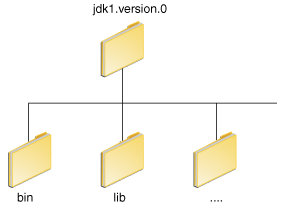
JDK directory structure
The bin directory contains both the compiler and the launcher.

Update the PATH Environment Variable (Microsoft Windows)

You can run Java applications just fine without setting the PATH environment variable. Or, you can optionally set it as a convenience.
Set the PATH environment variable if you want to be able to conveniently run the executables (javac.exe, java.exe, javadoc.exe, and so on) from any directory without having to type the full path of the command. If you do not set the PATH variable, you need to specify the full path to the executable every time you run it, such as:
C:\Java\jdk1.7.0\bin\javac MyClass.java
The PATH environment variable is a series of directories separated by semicolons (;). Microsoft Windows looks for programs in the PATH directories in order, from left to right. You should have only one bin directory for the JDK in the path at a time (those following the first are ignored), so if one is already present, you can update that particular entry.
The following is an example of a PATH environment variable:
C:\Java\jdk1.7.0\bin;C:\Windows\System32\;C:\Windows\;C:\Windows\System32\Wbem
It is useful to set the PATH environment variable permanently so it will persist after rebooting. To make a permanent change to the PATH variable, use the System icon in the Control Panel. The precise procedure varies depending on the version of Windows:
Windows XP
  1. Select Start, select Control Panel. double click System, and select the Advanced tab.
  2. Click Environment Variables. In the section System Variables, find the PATH environment variable and select it. Click Edit. If the PATH environment variable does not exist, click New.
  3. In the Edit System Variable (or New System Variable) window, specify the value of the PATH environment variable. Click OK. Close all remaining windows by clicking OK.
Windows Vista:
  1. From the desktop, right click the My Computer icon.
  2. Choose Properties from the context menu.
  3. Click the Advanced tab (Advanced system settings link in Vista).
  4. Click Environment Variables. In the section System Variables, find the PATH environment variable and select it. Click Edit. If the PATH environment variable does not exist, click New.
  5. In the Edit System Variable (or New System Variable) window, specify the value of the PATH environment variable. Click OK. Close all remaining windows by clicking OK.
Windows 7:
  1. From the desktop, right click the Computer icon.
  2. Choose Properties from the context menu.
  3. Click the Advanced system settings link.
  4. Click Environment Variables. In the section System Variables, find the PATH environment variable and select it. Click Edit. If the PATH environment variable does not exist, click New.
  5. In the Edit System Variable (or New System Variable) window, specify the value of the PATH environment variable. Click OK. Close all remaining windows by clicking OK.

Note: You may see a PATH environment variable similar to the following when editing it from the Control Panel:
%JAVA_HOME%\bin;%SystemRoot%\system32;%SystemRoot%;%SystemRoot%\System32\Wbem
Variables enclosed in percentage signs (%) are existing environment variables. If one of these variables is listed in the Environment Variables window from the Control Panel (such as JAVA_HOME), then you can edit its value. If it does not appear, then it is a special environment variable that the operating system has defined. For example, SystemRoot is the location of the Microsoft Windows system folder. To obtain the value of a environment variable, enter the following at a command prompt. (This example obtains the value of the SystemRoot environment variable):
echo %SystemRoot%

Update the PATH Variable (Solaris and Linux)

You can run the JDK just fine without setting the PATH variable, or you can optionally set it as a convenience. However, you should set the path variable if you want to be able to run the executables (javac, java, javadoc, and so on) from any directory without having to type the full path of the command. If you do not set the PATH variable, you need to specify the full path to the executable every time you run it, such as:
% /usr/local/jdk1.7.0/bin/javac MyClass.java
To find out if the path is properly set, execute:
% java -version
This will print the version of the java tool, if it can find it. If the version is old or you get the error java: Command not found, then the path is not properly set.
To set the path permanently, set the path in your startup file.
For C shell (csh), edit the startup file (~/.cshrc):
set path=(/usr/local/jdk1.7.0/bin $path)
For bash, edit the startup file (~/.bashrc):
PATH=/usr/local/jdk1.7.0/bin:$PATH
export PATH
For ksh, the startup file is named by the environment variable, ENV. To set the path:
PATH=/usr/local/jdk1.7.0/bin:$PATH
export PATH
For sh, edit the profile file (~/.profile):
PATH=/usr/local/jdk1.7.0/bin:$PATH
export PATH
Then load the startup file and verify that the path is set by repeating the java command:
For C shell (csh):
% source ~/.cshrc
% java -version
For ksh, bash, or sh:
% . /.profile
% java -version

Checking the CLASSPATH variable (All platforms)

The CLASSPATH variable is one way to tell applications, including the JDK tools, where to look for user classes. (Classes that are part of the JRE, JDK platform, and extensions should be defined through other means, such as the bootstrap class path or the extensions directory.)
The preferred way to specify the class path is by using the -cp command line switch. This allows the CLASSPATH to be set individually for each application without affecting other applications. Setting the CLASSPATH can be tricky and should be performed with care.
The default value of the class path is ".", meaning that only the current directory is searched. Specifying either the CLASSPATH variable or the -cp command line switch overrides this value.
To check whether CLASSPATH is set on Microsoft Windows NT/2000/XP, execute the following:
C:> echo %CLASSPATH%
On Solaris or Linux, execute the following:
% echo $CLASSPATH
If CLASSPATH is not set you will get a CLASSPATH: Undefined variable error (Solaris or Linux) or simply %CLASSPATH% (Microsoft Windows NT/2000/XP).
To modify the CLASSPATH, use the same procedure you used for the PATH variable.
Class path wildcards allow you to include an entire directory of .jar files in the class path without explicitly naming them individually. For more information, including an explanation of class path wildcards, and a detailed description on how to clean up the CLASSPATH environment variable, see the Setting the Class Path technical note.

Thursday, July 27, 2017

Is it possible in Java2D to move the coordinate system?

down vote accepted
You can change your coordinate system using the translate() function. For example:
Graphics2D g;                    // Assume this is already initialized
g.drawLine(100, 100, 200, 200);  // Draw in the default coordinate system
g.translate(100.0, 100.0);       // Move the origin down and to the right
g.drawLine(0, 0, 100, 100);      // Draw the same line relative to new origin
You can also use scale(), rotate() and shear() for more powerful transformations of the coordinate system. For more information check this page: http://docstore.mik.ua/orelly/java-ent/jfc/ch04_03.htm

How do I get the dynamic class name of an object?

String className = obj.getClass().getSimpleName();
Update:
public class Test {
    public static void main(String[] args) {
        Area map[][] = new Area[1][1];
        map[0][0] = new AntHillArea();
        String name = map[0][0].getClass().getSimpleName(); // returns "AntHillArea"
        System.out.println(name);
    }
}

class Area {

}

class AntHillArea extends Area {

}
Use getSimpleName method. It gives you only class and will remove any package if having.

Java BlockingQueue Example

Today we will look into Java BlockingQueue. java.util.concurrent.BlockingQueue is a java Queue that support operations that wait for the queue to become non-empty when retrieving and removing an element, and wait for space to become available in the queue when adding an element.

Java BlockingQueue


Java BlockingQueue doesn’t accept null values and throw NullPointerException if you try to store null value in the queue.
Java BlockingQueue implementations are thread-safe. All queuing methods are atomic in nature and use internal locks or other forms of concurrency control.
Java BlockingQueue interface is part of java collections framework and it’s primarily used for implementing producer consumer problem. We don’t need to worry about waiting for the space to be available for producer or object to be available for consumer in BlockingQueue because it’s handled by implementation classes of BlockingQueue.
Java provides several BlockingQueue implementations such as ArrayBlockingQueue, LinkedBlockingQueue, PriorityBlockingQueue, SynchronousQueue etc.
While implementing producer consumer problem in BlockingQueue, we will use ArrayBlockingQueue implementation. Following are some important methods you should know.
  • put(E e): This method is used to insert elements to the queue. If the queue is full, it waits for the space to be available.
  • E take(): This method retrieves and remove the element from the head of the queue. If queue is empty it waits for the element to be available.
Let’s implement producer consumer problem using java BlockingQueue now.

Java BlockingQueue Example – Message

Just a normal java object that will be produced by Producer and added to the queue. You can also call it as payload or queue message.
package com.journaldev.concurrency;

public class Message {
    private String msg;
    
    public Message(String str){
        this.msg=str;
    }

    public String getMsg() {
        return msg;
    }

}

Java BlockingQueue Example – Producer

Producer class that will create messages and put it in the queue.
package com.journaldev.concurrency;

import java.util.concurrent.BlockingQueue;

public class Producer implements Runnable {

    private BlockingQueue<Message> queue;
    
    public Producer(BlockingQueue<Message> q){
        this.queue=q;
    }
    @Override
    public void run() {
        //produce messages
        for(int i=0; i<100; i++){
            Message msg = new Message(""+i);
            try {
                Thread.sleep(i);
                queue.put(msg);
                System.out.println("Produced "+msg.getMsg());
            } catch (InterruptedException e) {
                e.printStackTrace();
            }
        }
        //adding exit message
        Message msg = new Message("exit");
        try {
            queue.put(msg);
        } catch (InterruptedException e) {
            e.printStackTrace();
        }
    }

}

Java BlockingQueue Example - Consumer

Consumer class that will process on the messages from the queue and terminates when exit message is received.
package com.journaldev.concurrency;

import java.util.concurrent.BlockingQueue;

public class Consumer implements Runnable{

private BlockingQueue<Message> queue;
    
    public Consumer(BlockingQueue<Message> q){
        this.queue=q;
    }

    @Override
    public void run() {
        try{
            Message msg;
            //consuming messages until exit message is received
            while((msg = queue.take()).getMsg() !="exit"){
            Thread.sleep(10);
            System.out.println("Consumed "+msg.getMsg());
            }
        }catch(InterruptedException e) {
            e.printStackTrace();
        }
    }
}

Java BlockingQueue Example - Service

Finally we have to create BlockingQueue service for producer and consumer. This producer consumer service will create the BlockingQueue with fixed size and share with both producers and consumers. This service will start producer and consumer threads and exit.
package com.journaldev.concurrency;

import java.util.concurrent.ArrayBlockingQueue;
import java.util.concurrent.BlockingQueue;

public class ProducerConsumerService {

    public static void main(String[] args) {
        //Creating BlockingQueue of size 10
        BlockingQueue<Message> queue = new ArrayBlockingQueue<>(10);
        Producer producer = new Producer(queue);
        Consumer consumer = new Consumer(queue);
        //starting producer to produce messages in queue
        new Thread(producer).start();
        //starting consumer to consume messages from queue
        new Thread(consumer).start();
        System.out.println("Producer and Consumer has been started");
    }

}
Output of the above java BlockingQueue example program is shown below.
Producer and Consumer has been started
Produced 0
Produced 1
Produced 2
Produced 3
Produced 4
Consumed 0
Produced 5
Consumed 1
Produced 6
Produced 7
Consumed 2
Produced 8
...
Java Thread sleep is used in producer and consumer to produce and consume messages with some delay.

Wednesday, July 26, 2017

How to create a Jar file in Netbeans

Create a Java archive (.jar) file using NetBeans as follows:
  1. Right-click on the Project name
  2. Select Properties
  3. Click Packaging
  4. Check Build JAR after Compiling
  5. Check Compress JAR File
  6. Click OK to accept changes
  7. Right-click on a Project name
  8. Select Build or Clean and Build
Clean and Build will first delete build artifacts (such as .class files), whereas Build will retain any existing .class files, creating new versions necessary. To elucidate, imagine a project with two classes, A and B.
When built the first time, the IDE creates A.class and B.class. Now you delete B.java but don't clear out B.class. Executing Build should leave B.class in the build directory, and bundle it into the JAR. Selecting Clean and Build will delete B.class. Since B.java was deleted, no longer will B.class be bundled.
The JAR file is built. To view it inside NetBeans:
  1. Click the Files tab
  2. Expand Project name >> dist
Ensure files aren't being excluded when building the JAR file.